Flaxon 0.3.0 and Teloce-Py 0.3.0 are available on PyPI. Release instructions are maintained on this site; source links identify the framework snapshot. Check version and upgrade guidance.
Flaxon VS Code Extension - Getting Started
Overview
The Flaxon VS Code Extension provides full IDE support for Flaxon, the async-first Python full-stack framework. It brings intelligent code completion, route exploration, debugging, and project scaffolding directly into your editor.
| Property | Value |
|---|---|
| Version | 0.1.2 |
| Publisher | Flaxon |
| License | MIT |
Installation
From the VS Code Marketplace
-
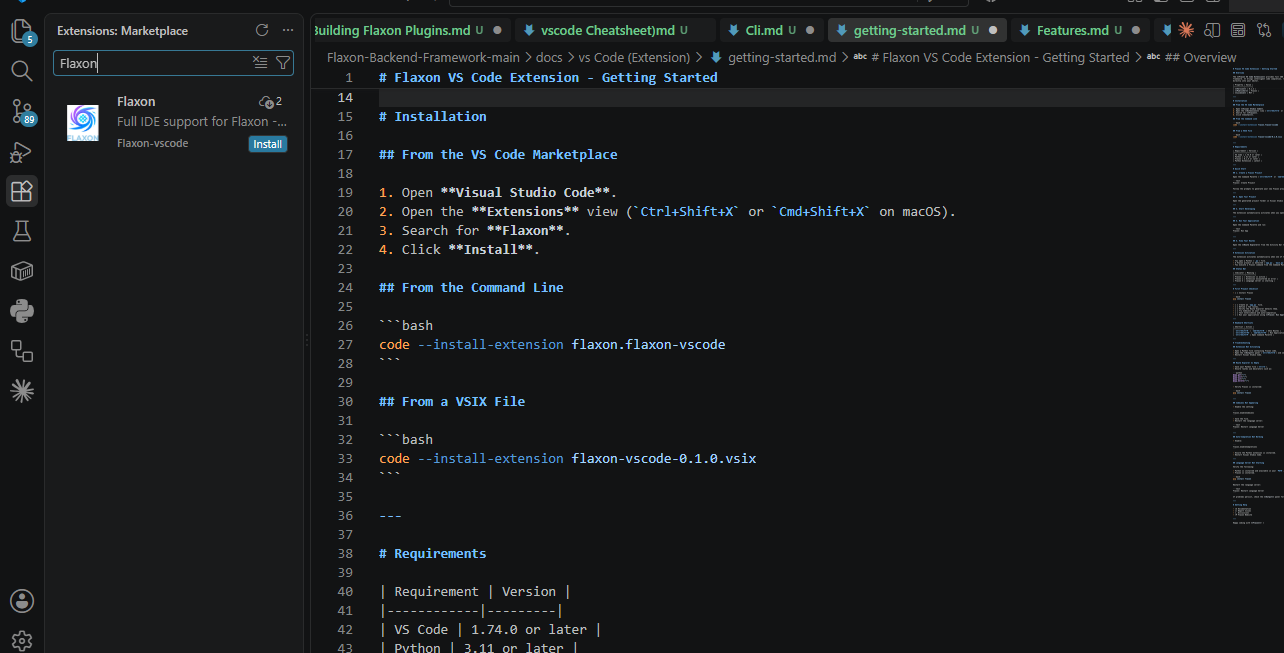
Open Visual Studio Code.
-
Open the Extensions view (
Ctrl+Shift+XorCmd+Shift+Xon macOS).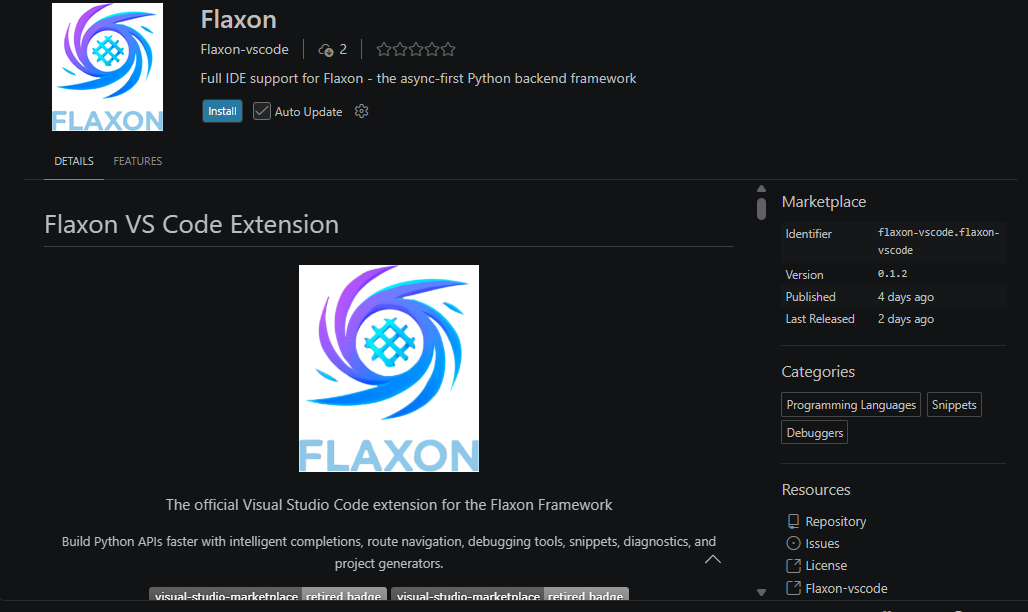
-
Search for Flaxon.
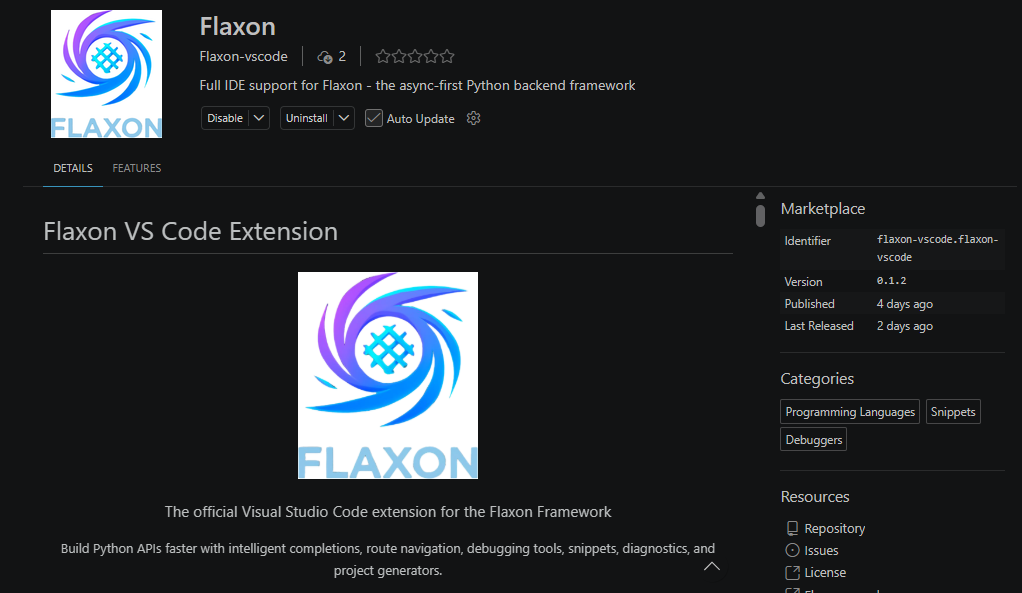
- Click Install.
From the Command Line
code --install-extension flaxon.flaxon-vscode
From a VSIX File
code --install-extension flaxon-vscode-0.1.0.vsix
Requirements
| Requirement | Version |
|---|---|
| VS Code | 1.74.0 or later |
| Python | 3.11 or later |
| Flaxon | 0.1.5 or later |
| Python Extension | Latest |
Quick Start
1. Create a Flaxon Project
Open the Command Palette (Ctrl+Shift+P or Cmd+Shift+P on macOS) and run:
Flaxon: Create Project
Follow the prompts to generate your new Flaxon project.
2. Open Your Project
Open the generated project folder in Visual Studio Code.
3. Start Developing
The extension automatically activates when you open a supported Flaxon project.
4. Run Your Application
Open the Command Palette and run:
Flaxon: Run App
5. View Your Routes
Open the Route Explorer from the Activity Bar to browse all discovered routes.
Extension Activation
The extension activates automatically when one of the following occurs:
- You open a Python (
.py) file. - A Flaxon project is detected (
app.py,main.py, orflaxon.py). - You execute a Flaxon command from the Command Palette.
Status Bar
| Indicator | Meaning |
|---|---|
| Flaxon ✓ | Extension is active |
| Flaxon ✗ | Extension encountered an error |
| Flaxon ⟳ | Language server is starting |
First Project Checklist
- Install Flaxon
pip install flaxon
- Create an
app.pyfile. - Define a few routes.
- Verify the Route Explorer detects them.
- Try CodeLens on your routes.
- Test IntelliSense and auto-completion.
- Run your application using Flaxon: Run App.
Keyboard Shortcuts
| Shortcut | Action |
|---|---|
Ctrl+Shift+R / Cmd+Shift+R |
Show Routes |
Ctrl+Shift+F5 / Cmd+Shift+F5 |
Run Application |
Ctrl+Shift+P |
Open Command Palette |
Troubleshooting
Extension Not Activating
- Open a Python file containing Flaxon code.
- Open the Output panel (
Ctrl+Shift+U) and select Flaxon. - Restart Visual Studio Code.
Route Explorer Is Empty
- Save your Python file (
Ctrl+S). - Ensure routes use decorators such as:
@app.get("/")
@app.post("/")
@app.put("/")
@app.delete("/")
- Verify Flaxon is installed:
pip install flaxon
CodeLens Not Appearing
- Enable the setting:
flaxon.enableCodeLens
- Save the file.
- Restart the language server:
Flaxon: Restart Language Server
Auto-Completion Not Working
- Enable:
flaxon.enableCompletions
- Ensure the Python extension is installed.
- Restart Visual Studio Code.
Language Server Not Starting
Verify the following:
- Python is installed and available in your
PATH. - Flaxon is installed.
pip install flaxon
Restart the language server:
Flaxon: Restart Language Server
If problems persist, check the Output panel for diagnostic messages.
Getting Help
- 📚 Documentation
- 🐛 Report Issues
- 💬 Discussions
- 🌐 Flaxon Website
Happy coding with Flaxon! 🚀